
Web Apps look even better after the progress of the past year!
NS Basic/App Studio 1.4.0 released!
Features great new ToolBox!
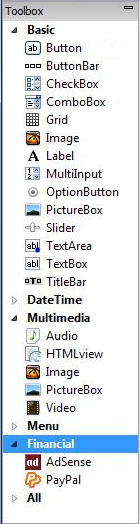
We’ve completely redone the toolbox. With its folders, it is able to accomodate many more controls than before. Being able to drag and drop onto the Design Screen makes it easier and more natural to use. All new icons make it look great. To top it off, we’ve added new Slider, Date and Time controls.
The URL is the same as before.
Here’s the complete list of what has been changed:
- ToolBox: Completely replaced – vastly improved!
- ToolBox: All new icons!
- ToolBox: Drag and drop controls to Design Screen.
- Controls: New Data, DateTime, Month and Time controls. (iOS5)
- Controls: New Slider control (iOS5)
- ToolBox: Double click adds control to Design Screen.
- Code Window: Indentation problem fixed with ‘If’ after a blank line.
- Code Window: Recompile of source code improved.
- Code Window: Syntax checking is back.
- Code Window: Very long statements are handled much better.
- Controls: PayPal – New addField() function added.
- Controls: PayPal – Subscribe and Unsubscribe added.
- Controls: CommandButton is now called Button.
- Deploy: Build status screen appearance improved.
- Deploy: Unicode characters allowed in configxml.
- Docs: Handbook and Language Reference updated.
- Docs: Tutorials 1-4 overhauled.
- Design Screen: Right click to add control do so at cursor position.
- IDE: Added “Reset IDE Panels” to View Menu.
- IDE: Control descriptions now appear in the Hints area.
- IDE: Format of .nsx file improved for more readability.
- IDE: View menu fixed.
- Installation: Unicode characters allowed in install path.
- Property Box: Spaces in control ID no longer allowed.
- Runtime: NSB.InputBox input field sized properly on Safari.
- Runtime: NSB.InputBox no longer bounces on Android
- Samples: New Slider sample (iOS5)
- Samples: DateTime updated to use new controls.
- Translator: Integer Divide operator now works (“”)
- Translator: VBCritical now parses properly.
- Translator: Multiple statements per line using : fixed.
Documentation Changes for Version 1.4.0
- The ToolBox has been overhauled. It looks a lot nicer, can scroll (so users with small screens can see all the controls again) and has some new features. To add controls to your project, either drag & drop them or double click.
Building Native Apps
The enhancements in NS Basic/App Studio 1.3.1 make building native apps much easier. First, a bit of background: NS Basic/App Studio is designed to make Web Apps. These apps take advantage of the power of current browsers and HTML5 to make native appearing apps. With the speed improvements of JavaScript in recent years, they have excellent performance. Web Apps can also be compiled into Native Apps, which have their own advantages and disadvantages.
Under the Run menu, there is an option called “Build Native App”. Once you have tested your project, use this option to submit your app to the PhoneGap Build server. The compilers and SDKs to build native apps are large and complex: using a server to perform these operations saves you a lot of grief installing and maintaing them.
Once submitted, you can check the status of the build using “Get Native Build Status” under the Run menu.
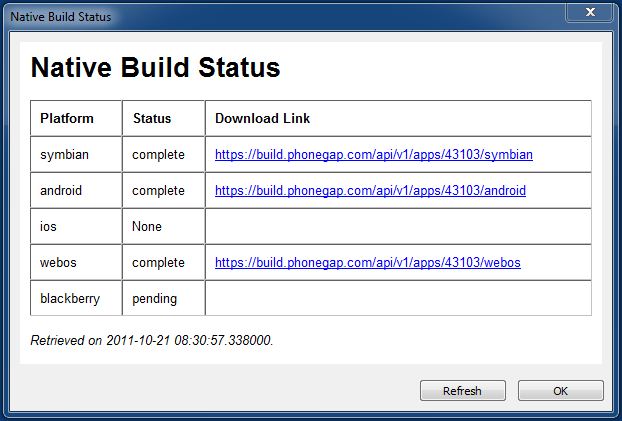
Completed builds have their download links listed.
Some useful notes:
- Each user of PhoneGap Build should have their own account. For demo purposes, NS Basic has a default account, but your files will not be secure there. It’s easy to sign up for your own. Once you have it, enter the information into “Deploy Options” under the Tools menu.
- The program name and your icon will be taken from your project properties. Other PhoneGap options are set up in the configxml property in your project’s properties. Read more about using config.xml here.
- iOS will not build until Apple’s signing information has been entered.
- PhoneGap Build is in beta right now. PhoneGap may start charging for this service at a some point.
NS Basic/App Studio 1.3.1 Released!
NS Basic/App Studio 1.3.1 is ready to download. You can download it from the same URL as before.
Here is what is new and changed:
1.3.1
- Deploy: config.xml file now created automatically. See below.
- Controls: Adsense – id property added.
- Controls: Textarea now has single finger scrolling (iOS 5)
- Deploy: PhoneGap Build 404 errors now handled gracefully.
- Globals: AppBuildStamp, AppLegalCopyright, AppVersion, NSBVersion added.
- IDE: New control: range slider. Part of TextBox. (iOS 5)
- IDE: New project property: configxml
- IDE: New project property: Version
- IDE: phonegap property removed. See below.
- Runtime: Buttons no longer have orange flash on Android
- TechNotes: New Tech Note 8: Web Apps Compared to PhoneGap Apps
Documentation Changes for Version 1.3.1
-
Config.xml is a file that PhoneGap uses for its settings: icon, program name, version, features used, etc. Until now, you had to create this file yourself. Now, it is generated automatically using the information already in your project. To customize it for your own needs, edit configxml in Project Properties. Full documentation on config.xml is here.
-
The phonegap property has been removed from Project Properties. It conflicted with PhoneGap Build and was rarely used. To accomplish the same thing, add
<script src="phonegap.js"></script>to the extraheaders property. -
Range

The Range option in the TextBox control allows you to have an input slider. (iOS 5).
NS Basic/App Studio 1.3.0 Released!
NS Basic/App Studio 1.3.0 is ready to download. You can download it from the same URL as before. We will also be sending an email with the address to registered users.
Major new features include:
– PhoneGap Build integrated into IDE
– New Adsense control: make money from ads in your app
– New NSB.MsgBox control: nicer looking, more features
– iOS 5 features: Date, DateTime, Month and Time pickers
As well as lots of other additions and bug fixes!
Here is the complete list:
1.3.0
- PhoneGap: Can now create native apps directly in NS Basic/App Studio.
- Controls: New AdSense control lets you add advertising to your app.
- Language: New NSB.InputBox function
- Language: New NSB.MsgBox function
- Controls: ComboBox: Complete overhaul, much easier to use. See below.
- Controls: Add new Date, DateTime, Month and Time input types for iOS5.
- Code Window: ‘is’ and ‘in’ are now treated as a keywords.
- Code Window: Search now handles unicode characters.
- Code Window: Fixed bug on line continations.
- Controls: Menus now refresh automatically when items added or deleted.
- Controls: Menus: Scrolling fixed on MenuNumber* controls.
- Controls: Menus: several formatting problems fixed.
- Deploy: NETWORK: * is default in manifest. See below.
- Docs: Handbook and Language Reference updated.
- IDE: Amazon Fire screen size added. (see below)
- IDE: File name at top of the screen corrected.
- Language: New Sort() function – see sample in Folder 3.
- Language: Values of vbYes and vbNo changed from true, false to 6,7.
- Language: MsgBox returns new values for vbYes and vbNo.
- Language: Add encodeURI() and decodeURI() to documentation
- Language: Add encodeURLComponent() and decodeURIComponent() to docs.
- Runtime: iScroll updated to 4.1.9
- Samples: New DateTime sample.
- Samples: New Sort sample.
- Samples: All web samples have improved manifests.
- Samples: FaceBookAPI and GoogleReverseGeocoding should now work.
- Samples: Geolocation updated due to change on Google’s server.
- Samples: New AdSense sample.
- Samples: New nsbMsgBox sample shows MsgBox and InputPrompt.
- Samples: LocalStorage enhanced with extreme comments. (Thanks, Alan Heverly!)
Documentation Changes for Version 1.3.0
-
iOS5: This release brings support for new features in iOS5. Unfortunately, iOS5 has a bug which affects all web apps (not just NS Basic generated ones). It is recorded as Bug 9519157 in Apple’s tracking system. The first time an app is run after it is saved to the Home screen, it will show a message that internet access is required. The message can be ignored: it will only appear once.
-
PhoneGap Build in NS Basic/App Studio: We have now added the ability to create native apps using PhoneGap directly into NS Basic/App Studio. Here is what you need to do:
- If you have a PhoneGap Email and Password, enter it into Deploy Options (under the Tools menu). Otherwise, a demo account will be used.
- From the Run menu, choose “Build Native App”.
- From the Run menu, check the status of your build in “Get Native Build Status”.
- As the builds complete, the URLs to download them will appear on this screen.
- Do whatever else you need to do to deploy the native app to the device.
- To set additional options for the build, create a config.xml file in your home directory. See https://build.phonegap.com/docs/config-xml.
-
ComboBox: Now much easier to use, and supports setting up the list in the IDE. Old implmentation should continue to work. See updated sample.
-
Manifest: NETWORK: * is now part of the default manifest. This means that any external reference is now allowed. This is especially helpful if you are doing complex operations with external servers. If you add your own NETWORK: section to your manifest, it will override the default setting.
-
New AdSense Control: AdSense lets you put advertising on your page. If your customer clicks on it, your AdSense account at Google will earn money. To use this, first sign up with AdSense.com, then fill the account details into the control’s properties. Note that if the customer clicks on an ad, your program will end and the customer will be taken to the ad’s website. Make sure you keep your current state saved so you can restart.

-
New NSB.MsgBox control: The current MsgBox statement reads “JavaScript” instead of the program name, and is missing many features found in the VBScript version. The new NSB.MsgBox remedies this – it has all the features of the VBScript statement and more: such as custom icons.
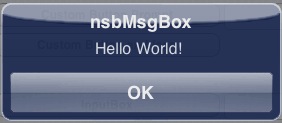
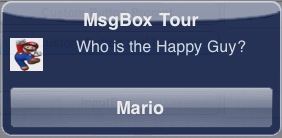
There is one significant difference. All execution is not stopped until the user responds (as the current MsgBox and the VBScript one do). The screen will lock out all other input, but execution will continue. Once the user has dismissed the NSB.MsgBox, a function in the program can be called to deal with the result.
See the new nsbMsgBox sample.
-
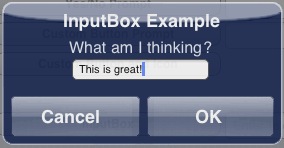
New NSB.InputBox control: Implemented much like NSB.MsgBox.
-
Amazon Fire support: While we support the screensize of the device, we have not actually gotten one to test yet. No promises until we do!
NS Basic/App Studio 1.2.6 Released!
NS Basic/App Studio 1.2.6 is ready to download. You can download it from the same URL as before. We will also be sending an email with the address to registered users.
1.2.6
- Samples: Nearly all have been revised and new comments added.
- Controls: All scrolling controls now have a refresh() method. See below.
- Docs: Handbook and Language Reference updated.
- Code Window: ‘Not’, ‘True’ and ‘False’ were not colored correctly.
- Code Window: False syntax error on Do statement fixed.
- Controls: Form now has some events.
- Controls: nsbbutton class improved.
- Controls: Remove href=”#” tags – fixes refresh problem.
- Deploy: Incorrect browser message can be changed.
- Language: New global: Location. See Language Reference.
- Samples: New Picturebox_ScrollAndZoom sample.
- Samples: Reorganized folders.
Documentation Changes for Version 1.2.6
-
Scrolling controls: All now have a .refresh() method, which replaces having to do SetTimeout(control_ref.refresh(),100). Now you just need to do control.refresh() after the content of a scrolling area is rendered or updated.
Getting money from your customer: PayPal
It’s easy to use PayPal with NS Basic/App Studio. You can collect the money as payments or a donations. PayPal is available in many countries. It’s much easier to set up and use than a credit card.
First, set yourself up as a PayPal Merchant. Assuming you already have a PayPal account, go to the Merchant Services tab on the main screen. On the left, you will see a tab called “Website Payments Standard”. Click on that and follow the instructions.
Once you are set up as a merchant, you will need to set up your product. The easiest way to do that is on the Merchant Services page: Choose the “Buy Now button” option. Enter a number of fields, including item name, item ID (a reference number for your own use), price, currency (21 choices!), shipping and tax info. Once complete, click on ‘Create Button’.
It will go to a new page, showing the code for the button. You’re interested in the string just after “value=”. In this case, it is “UEQCPME2W9Q8W”. Copy this number down – you will need to enter it in the IDE:
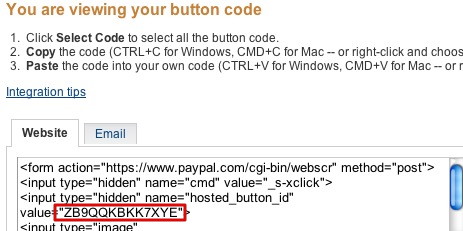
In your project, add the PayPal button like any other and position on your form. It will have the following properties:

Put the value from the PayPal screen into ‘hostedButtonID’. For TransactionType, select ‘Buy’ or “Donate’. One of the following will appear on your form:

That’s all you have to do. When your app is running, if the user clicks on the PayPal button, a new browser window will open to the PayPal page, with your product showing. All they have to do is authorize the transaction and the money will show up in your PayPal account.

If you’re running as a web app, you do not have to pay 30% to Apple. Please be careful of local tax laws and restrictions.
How to do Encryption
Encryption is easy to do in NS Basic/App Studio using an encryption library. For the purposes of this post, we’ll use the Stanford JavaScript Crypto Library. It uses the industry-standard AES algorithm at 128, 192 or 256 bits; the SHA256 hash function; the HMAC authentication code; the PBKDF2 password strengthener; and the CCM and OCB authenticated-encryption modes. Just as importantly, the default parameters are sensible: SJCL strengthens your passwords by a factor of 1000 and salts them to protect against rainbow tables, and it authenticates every message it sends to prevent it from being modified.
First step is to add the library to your project. You can follow the steps here, or simply export and import the library from the Encrypt sample.

Encryption works by supplying a password which is used to scramble the text in such a way that it is virtually impossible to unscramble without that password.
There are two important functions: encrypt(password, text) and decrypt(password, text).
Here is how you would use them in a program:
Function btnEncrypt_onclick()
  txtEncrypted.value=sjcl.encrypt(txtPassword.value, txtPlain.value)
End Function

Function btnDecrypt_onclick()
  txtPlain.value=sjcl.decrypt(txtPassword.value, txtEncrypted.value)
End Function
sjcl is the reference to the encryption library. It is created as a result of the inclusion of the library in the project. Once your data is encrypted, you can save it to a database or send it to another computer.
Including JavaScript libraries in your project
There’s a huge amount of JavaScript code available on the net. If you need a special function that isn’t already in NS Basic/App Studio, chances are that someone has written it in JavaScript and made it available for download. It’s easy to add this code to your project.
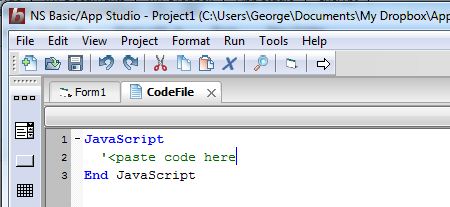
First, from the Project Menu, choose Add New Code File and enter in JavaScript…End JavaScript:
Next, let’s get the JavaScript code and open it in NotePad. For this post, we’re going to use the Stanford JavaScript Crypto Library. Here’s what it looks like in NotePad:
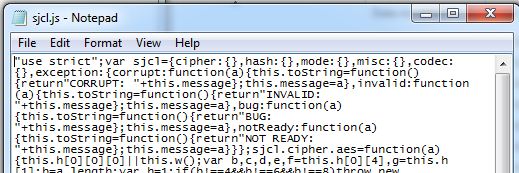
Not very readable: it has been minimized. No matter for us – we don’t have to read it to use it. Copy the complete text and paste it in between our lines of code. Delete the “use strict”; at the start of the line.

Finally, let’s name our new code file something useful:

The library is now part of your project. We will cover actually calling it in the next blog post (it’s easy!), but to finish this one off, let’s discuss how to reuse this code file in another project.
Under the File Menu, choose Export Current Form/Code… This will save the code file as a separate .cod file.
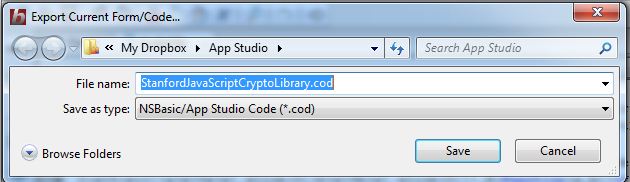
To load a .cod file into your project, choose Add Existing Code File… from the Project menu:

The code module will be added to your project. .COD files are a handy way to share code. If you have a good one, feel free to save it to the Files section of the web board.
Note: Be respectful of any license restrictions on the code snippits you use. Sometimes it’s as simple as including the author’s name in a comment. Sometimes you’re not allowed to use the code in an app you sell. It’s wise to follow the author’s request.
NS Basic/App Studio 1.2.5 Released!
NS Basic/App Studio 1.2.5 is ready to download. You can download it from the same URL as before. We will also be sending an email with the address to registered users.
There are a few nice new features:
– New samples for TextToSpeech, Encryption and Sencha Touch.
– New ButtonBar and PayPal controls
– Deployment improved
– Lots of fixes and usability improvements
1.2.5
- Samples: TextToSpeech sample added.
- Samples: New Encrypt sample added.
- Controls: new PayPal button control to “Buy Now” or “Donate”.
- Controls: new ButtonBar control.
- Design Screen: Right click to add control.
- Samples: new SenchaKitchenSink (work in progress)
- Code Window: improve syntax error checking for HTML blocks.
- Code Window: Fix line continuation problem with syntax checking.
- Code Window: Fix problem with block comment selection.
- Code Window: Fixed generated event functions in JavaScript mode.
- Controls: Grid has new refresh() function.
- Controls: iMenu.addItem now adds images properly. (Thanks, Brian Leach!)
- Controls: Audio and Video no longer have extra / in tag.
- Deploy: Improvements for IIS servers.
- Deploy: Improvements to server folder creation.
- Deploy: Streamline some HTML in the header.
- Deploy: Manifest file now called index.manifest for PhoneGap.
- Docs: Handbook and Language Reference updated.
- Language: GetRef() function added. See Language Reference.
- Samples: fixes to Base64Image, Signature, SqlSample1
- Samples: Reorganized folder.
- Sencha: Added Overlay() function. See SenchaKitchenSink sample
- Translater: Functions with “_” in their name fixed.
- Translator: x = {b: {d: a, e: a}, c: a} fixed.
- Translator: If a.b=true then… no longer changes value of a.b.
- Translator: If If a then MsgBox “b” fixed.
Documentation Changes for Version 1.2.5
-
New PayPal control: This provides an easy way to collect a payment or a donation from a user. Tapping on it will bring up the PayPay Payments screen with the user and amount filled in – all they have to do is approve the transation. To use it, you need to have a PayPal Merchant Account (easy to set up), and use Merchant Services to create a button. Use the ID number it gives you in the properties of the button, and specify whether this is a Donation or Purchase. This feature will be handy for those selling commercial or donationware apps.
-
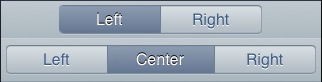
New ButtonBar control: This control lets you arrange two or three buttons, either as a titlebar or lower down on the form. This are usually used for apps with multiple forms to switch between. Each form will have a buttonbar control on it, with a different button highlighted.
-
Text to Speech: A new sample has been added showing how to get the device to speak a text string. To do this, you will need to sign up with iSpeech. The first 1000 words are free.
-
Sencha Touch is an additional library of controls and functions. The best way to experience it is to run the new KitchenSink sample in the Sencha folder. It has some beautiful effects (more coming), but since it is fairly large, it can slow down app deployment and loading.
-
Grid.refresh(): This new function should be called whenever the size of a grid changes, or when a scrolling grid is opened on a new form. It replaces the SetTimeout(grid_ref.refresh(),100) that used to be needed. Check the GridWithScrolling sample to see how it is used.
-
Design Screen: When you right click on the Design Screen, there is an option to “Add Component”. This brings up a list of all the controls: you can pick which one you want to add to the form. This is especially useful for people whose screen is too small to display the complete ToolBar. You can even turn the Toolbar off under the View menu if you are no longer using it.